
Hướng dẫn··5 phút đọc·NenMua Editor
Hướng dẫn tối ưu pin laptop Windows 2026 — kéo dài 30-50% thời lượng
Hướng dẫn tối ưu pin laptop Windows 2026 — settings, app, hardware. Kéo dài pin 30-50% mà không giảm hiệu năng quá nhiều.
Mục lục (33 mục)
Tóm tắt nhanh
7 bước tối ưu pin laptop Windows:
- Battery saver mode + power plan
- Giảm độ sáng màn hình
- Tắt apps background không cần
- Tắt RGB + keyboard backlight khi không cần
- Tắt Bluetooth + Wi-Fi khi không dùng
- Update driver + Windows
- Hardware: SSD + thermal paste mới
1. Battery saver + Power plan
Bật Battery Saver
- Settings → System → Power & battery → Battery saver
- Bật ON khi pin dưới 20% (auto-enable)
- Hoặc bật manual khi cần kéo dài
Tác động: Giảm 30-40% pin consumption — tắt sync, notification, background activity.
Power Plan
- Settings → System → Power → Power Mode
- Best Power Efficiency: Pin lâu nhất, hiệu năng giảm
- Balanced: Sweet spot daily
- Best Performance: Pin nhanh hết, hiệu năng tối đa
Khuyên dùng: Best Power Efficiency khi đi cafe, Balanced khi ở nhà cắm sạc.
2. Độ sáng màn hình
- Settings → System → Display → Brightness
- Giảm 50-70% (đủ nhìn rõ indoor)
- Auto-brightness: Bật để tự điều chỉnh theo ánh sáng môi trường
Tác động: Độ sáng là yếu tố hao pin lớn nhất (15-25% total).
Tip: Refresh rate
- Laptop 120Hz / 144Hz screen
- Giảm xuống 60Hz khi cần pin
- Settings → Display → Advanced display
Tác động: Giảm 10-15% pin consumption khi đổi 144Hz → 60Hz.
3. Apps background
Check apps tiêu pin
- Settings → System → Power → Battery usage
- Sort by pin usage
- Identify apps tiêu nhiều (Spotify, Discord, Chrome)
Tắt background
- Settings → Apps → Apps & features
- Click app → Advanced options → Background apps permission → Never
Apps điển hình tiêu pin
- Chrome: 50+ tabs = 20-30% pin/giờ
- Slack / Discord: Real-time sync ngốn pin
- OneDrive / Dropbox sync: Chạy background liên tục
- Adobe apps: Update + Creative Cloud always-on
Giải pháp
- Đóng tabs Chrome không cần (extension OneTab)
- Pause sync cloud khi đi đường
- Disable Adobe CC startup (Task Manager → Startup)
4. RGB + keyboard backlight
Tắt khi không cần
- Function key (Fn + F5/F6 thường): Toggle keyboard backlight
- Manufacturer software: Asus Armoury Crate / Lenovo Vantage — tắt RGB
- Per-key RGB: Tốn pin nhất, tắt khi đi cafe
Tác động: Tiết kiệm 5-10% pin.
5. Bluetooth + Wi-Fi
Tắt khi không dùng
- Settings → Devices → Bluetooth → OFF khi không cần tai nghe
- Airplane mode khi đi máy bay / không cần internet
- 5GHz Wi-Fi tốn pin hơn 2.4GHz — chọn 2.4GHz cho task nhẹ
Tác động: Tiết kiệm 5-10% pin.
Hotspot mobile
- Dùng phone hotspot tốn pin laptop hơn Wi-Fi nhà
- Vì signal yếu, laptop phải boost signal liên tục
6. Update driver + Windows
Driver update
- Settings → Windows Update → Advanced options → Optional updates
- Update driver display + chipset
Windows Update
- Bản Windows mới fix bug pin
- Optimize OS-level battery management
Manufacturer driver
- Asus MyAsus / Lenovo Vantage / HP Support Assistant
- Tải driver mới nhất từ manufacturer
Tác động: Một số bản fix tăng 10-15% pin.
7. Hardware optimization
Thay SSD NVMe
- HDD cũ thay SSD: tiết kiệm 20-30% pin (SSD tiêu thụ thấp hơn nhiều)
- Cost: 1.5-2.5 triệu cho 1TB NVMe
Thay thermal paste
- Sau 2-3 năm, thermal paste khô → CPU/GPU nóng → fan chạy nhiều → tốn pin
- Thay paste tại service center: 300-500k
- DIY: 100k paste Arctic MX-4
Battery health check
- PowerShell: Lệnh "powercfg /batteryreport" → tạo report HTML
- Check Design Capacity vs Full Charge Capacity
- Nếu giảm 30-40% → cân nhắc thay pin (500k-2 triệu tùy laptop)
App giúp tối ưu
Windows native
- Battery Usage report (Settings)
- Task Manager (Ctrl+Shift+Esc → Performance)
Third-party
- BatteryInfoView (Nirsoft): Pin health chi tiết
- HWMonitor: Temperature + voltage realtime
- Throttlestop: Undervolt CPU (advanced)
Battery life expectations
Sau khi tối ưu
| Loại laptop | Pin gốc | Sau tối ưu |
|---|---|---|
| Ultrabook (MacBook Air-like) | 8-10 giờ | 10-13 giờ |
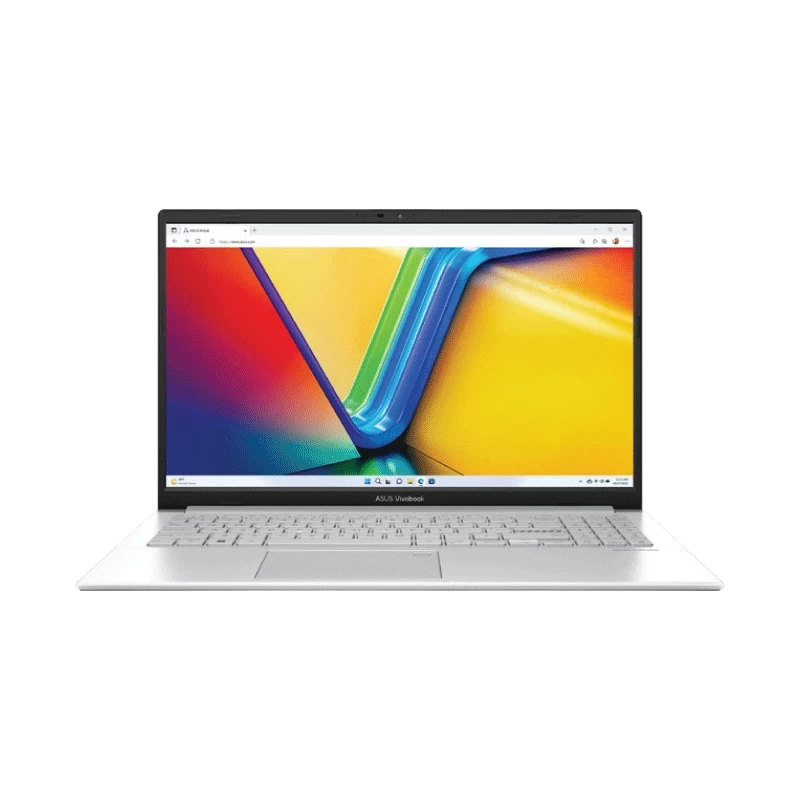
| Mid-range (Asus Vivobook) | 6-8 giờ | 8-10 giờ |
| Gaming laptop | 3-5 giờ | 4-6 giờ |
| Workstation | 4-6 giờ | 6-8 giờ |
Tips dài hạn
Sạc đúng cách
- Không sạc 100% liên tục: Charge limit 80% (BIOS / manufacturer software)
- Calibrate pin mỗi 2 tháng: Charge full 100% → discharge 0% (1 lần)
- Tránh để pin 0% lâu: Đảo deep discharge gây hư cell
Storage khi không dùng lâu
- Sạc pin lên 50% trước khi cất (battery storage)
- Cất nơi mát khô
- Cứ 3 tháng cắm 1 lần để pin không chết
Khi nào thay pin
- Battery report dưới 70% Design Capacity
- Pin sạc đầy chỉ dùng được 1-2 giờ
- Cost: 500k-2 triệu tùy model
Mua phụ kiện
- SSD NVMe: Phong Vũ, GearVN (Samsung 980 Pro 1TB ~3 triệu)
- Thermal paste: Lazada Arctic Cooling, GearVN (MX-4 ~100k)
- Pin replacement: Service center chính hãng